Medya
UzantısıMedia
Extension
Bilgisayarında bir şarkı açtığında kapağı, adı ve ilerleme çubuğu birkaç saniyede PUCKS ekranına düşer. Kurulum tek sefer: uzantıyı ekle, gerisine karışma. Spotify, YouTube ve YouTube Music kendiliğinden tanınır. Put a song on and within seconds its cover, title and progress bar land on your PUCKS screen. Setup happens once: add the extension and forget it. Spotify, YouTube and YouTube Music are picked up automatically.
İki adımda
hazırReady in
two steps
Uzantı Chrome Web Store'da yayında. Mağazadan ekle, cihazınla eşleştir, gerisine karışma.The extension is live on the Chrome Web Store. Add it, pair it with your device, and forget about it.
Mağazadan ekleAdd from the store
Yukarıdaki Chrome Web Store'dan Ekle düğmesine bas, açılan sayfada Chrome'a Ekle'yi tıkla. Edge, Brave ve Opera da Chrome Web Store'dan kurulum yapar; ayrı bir adım gerekmez.Press Add from Chrome Web Store above, then click Add to Chrome. Edge, Brave and Opera install from the Chrome Web Store too — no extra step.
Cihazla eşleştirPair with your device
PUCKS'ta Medya Takibi ekranını aç, "Ekranda 4 haneli kod göster"e bas. Tarayıcıdaki PUCKS ikonuna tıkla, ekrandaki kodu gir — bu kadar. Cihazın IP'sini bilmiyorsan tarayıcıya http://cihaz-ip/music yazıp oradan da eşleştirebilirsin.On PUCKS open the Media Tracking screen and tap "show 4-digit code on screen". Click the PUCKS icon in your browser, type the code — done. If you don't know the device IP, open http://device-ip/music and pair from there too.
Mağazaya erişemiyorsan: .zip ile elle kurulumNo store access? Install the .zip manually
- Yukarıdaki .zip olarak indir bağlantısından dosyayı al ve kalıcı bir klasöre çıkar. Klasörü silersen uzantı da kalkar.Grab the file from Download .zip above and unzip it into a permanent folder. Deleting the folder removes the extension.
- Adres çubuğuna chrome://extensions yaz (Edge edge://extensions, Brave brave://extensions, Opera opera://extensions).Type chrome://extensions (Edge edge://extensions, Brave brave://extensions, Opera opera://extensions).
- Sağ üstten Geliştirici modunu aç.Turn on Developer mode in the top-right.
- Paketlenmemiş öğe yükle'ye tıkla ve çıkardığın klasörü seç (içindeki dosyayı değil).Click Load unpacked and pick the folder you unzipped (not a file inside it).
- Ardından yukarıdaki 2. adımdaki gibi eşleştir.Then pair as described in step 2 above.
Aynı ağda olmalısınızStay on the same network
Bilgisayarın ve PUCKS aynı Wi-Fi ağında olmalı. Uzantı, medya bilgisini doğrudan yerel ağdaki cihaza gönderir; hiçbir veri buluta gitmez.Your computer and PUCKS must share the same Wi-Fi network. The extension sends media info straight to the device on your LAN; nothing goes to the cloud.
Tek panel.
Her şey elinin altında.One panel.
Everything within reach.
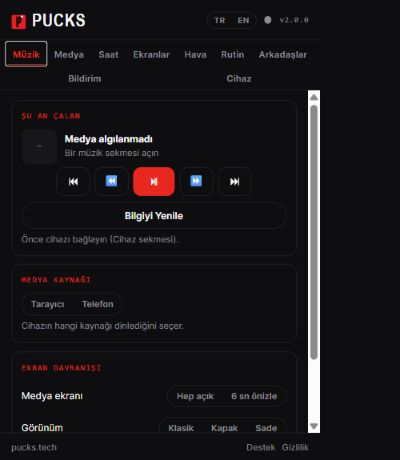
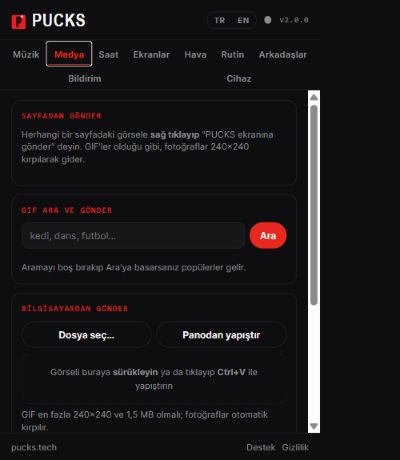
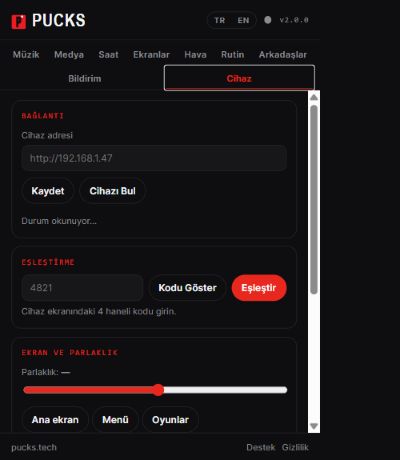
Bunlar gerçek PUCKS uzantısı ekranlarıdır. Müziği yönet, görsel gönder veya cihazını doğrudan tarayıcıdan eşleştir.These are real PUCKS extension screens. Control music, send visuals or pair and manage your device straight from the browser.
Tarayıcıdan
tam kontrolFull control
from the browser
Uzantı artık yalnızca medya göndermiyor: telefon uygulamasındaki yönetim işlevlerinin çoğu tarayıcı panelinde. Altı sekme, tek tık.The extension no longer just sends media: most of the phone app's controls now live in the browser panel. Six tabs, one click.
Müzik ve karaokeMusic & karaoke
Çalan parçayı gör; oynat/duraklat, önceki–sonraki ve 10 sn ileri–geri doğrudan panelden. Medya kaynağı, ekran görünümü ve senkron şarkı sözleri aynı yerde.See what's playing; play/pause, previous–next and ±10 s straight from the panel. Media source, screen style and synced lyrics live in the same place.
Saat yüzüClock face
Yerleşik saat yüzleri arasında geçiş yapabilir, 12 veya 24 saat biçimini seçebilir, marketten indirdiğin yüzleri etkinleştirebilir ya da silebilirsin.Switch built-in faces, pick 24/12-hour format, activate or delete downloaded market faces.
Ekran eklentileriScreen plugins
Kurulu eklentileri açıp kapatabilir ve ayarlarını düzenleyebilirsin: haberler, döviz, su hatırlatıcı, zamanlayıcı ve diğerleri.Toggle installed plugins and edit their settings — news, currency, water reminder, timer and the rest.
Hava tercihleriWeather preferences
Şehri, sıcaklık birimini ve temayı seçebilir; tek düğmeyle cihazda hava durumu ekranını açabilirsin.City, °C/°F and theme; send the device straight to the weather screen with one button.
Bildirim aynalamaNotification mirroring
Bir web sitesi bildirim gösterdiğinde (WhatsApp Web, Gmail, Discord…) başlığı ve metni PUCKS ekranına düşer. Süre, boyut ve tasarım ayarlanır; istemediğin siteleri kara listeye alırsın. Bildirimler hiçbir sunucuya gitmez, doğrudan yerel ağdaki cihazına gider.When a site shows a notification (WhatsApp Web, Gmail, Discord…), its title and text appear on the PUCKS screen. Duration, size and style are configurable and you can blocklist sites. Notifications never reach any server — they go straight to your device on the LAN.
CihazDevice
Ağda cihaz arama, eşleştirme, parlaklık, ana ekran/menü/oyun kısayolları ve sürüm–sinyal–RAM bilgisi.Discover the device on your network, pair it, set brightness, jump to home/menu/games and read version, signal and RAM.
Tanıdığı
platformlarPlatforms
it knows
Tarayıcı sekmesinde çalan medyayı otomatik yakalar. Şu servisler kutudan çıktığı gibi tanınır:It automatically catches media playing in a browser tab. These services are recognised out of the box:
Masaüstü
uygulamalarıDesktop
apps
Spotify Desktop veya Apple Music gibi tarayıcı dışı uygulamalar için küçük bir yardımcı çalıştır. Kurulum gerektirmez; çift tıkla, açık bıraktığın sürece çalan medyayı PUCKS'a yollar.For non-browser apps like Spotify Desktop or Apple Music, run a tiny helper. No install needed; double-click it and it forwards playing media to PUCKS while it stays open.
Windows
Dosyaya sağ tıklayıp PowerShell ile Çalıştır de. Açık kaldığı sürece Spotify Desktop'ta çalan şarkıyı PUCKS'a yollar.Right-click the file and choose Run with PowerShell. While it stays open it forwards whatever Spotify Desktop is playing to PUCKS.
İndir (.ps1)Download (.ps1)macOS
Dosyaya çift tıkla; ilk açılışta "tanımlanamayan geliştirici" uyarısı çıkarsa sağ tık → Aç seçeneğini kullan. Spotify ve Apple Music'ten parça bilgilerini alır.Double-click the file; if macOS complains about an unidentified developer, right-click → Open. Reads metadata from Spotify and Apple Music.
İndir (.command)Download (.command)Sık sorulanlarQuick fixes
Şarkı ekrana düşmüyor: Uzantı popup'ında doğru cihaz IP'sinin yazılı ve eşleştirmenin yapılmış olduğundan emin ol. "Yenile"ye bas.Nothing shows up: make sure the popup has the right device IP and that pairing is done. Hit "Refresh".
İkon görünmüyor: Chrome araç çubuğundaki bulmaca parçası simgesine tıkla, PUCKS Medya'yı sabitle.No icon: click the puzzle-piece in Chrome's toolbar and pin PUCKS Media.
Kod kabul edilmiyor: Kod 60 saniyede bir yenilenir. Ekranda güncel kodu gösterip yeniden dene.Code rejected: the code refreshes every 60 seconds. Show a fresh one on screen and retry.